Interactive water ripples in Three.js
A visitor touches the water and a ring spreads from their fingertip. Build that interaction for a touch table, a museum exhibit or a web installation using one raycast and Tidewater’s local waves.
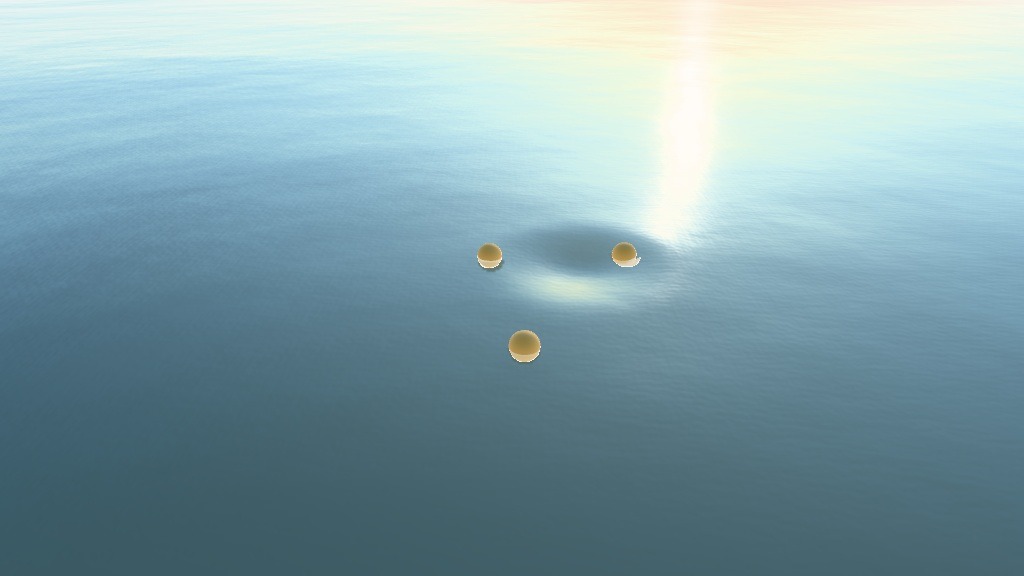
Pick a spot
Start with a fixed camera and shallow swells. Calculate the pointer coordinates relative to the canvas, so the same math works when you put the scene next to text or below a toolbar. From the camera, cast through that pixel to the still-water plane at y = 0. Its intersection gives you an X and Z in metres. Three.js raycaster reference.
The flat plane is a good approximation here because the scene uses the Tranquil preset and the camera looks down. Move the plane to match waterLevel if your scene uses a different elevation. Keep the active area away from the horizon, where a small move on screen covers a large distance on the water.
Build the exhibit
Create ripples.html and ripples.js next to src/ in the Tidewater download. Copy the import map from the download’s index.html into the head of a new document, then put this markup in its body.
<style>
  body { margin: 1rem; font: 1rem system-ui; }
  #water-view { height: min(65vh, 36rem); }
  canvas { display: block; touch-action: manipulation; }
  button { margin-top: .75rem; }
</style>
<div id="water-view"></div>
<button id="ripple" type="button" disabled>Make a ripple</button>
<script type="module" src="./ripples.js"></script>
Save this as ripples.js. Run python3 -m http.server 8080 in the download folder and open http://localhost:8080/.
import * as THREE from "three/webgpu";
import { createRenderer } from "./src/renderer.js";
import { createWater } from "./src/Tidewater.js";

const host = document.querySelector("#water-view");
const button = document.querySelector("#ripple");
const { renderer } = await createRenderer();
renderer.setPixelRatio(Math.min(devicePixelRatio, 1.5));
host.append(renderer.domElement);

const scene = new THREE.Scene();
const camera = new THREE.PerspectiveCamera(48, 1, 0.1, 5000);
camera.position.set(-11, 6.25, 4.2);
camera.lookAt(0, 0, 0);
camera.updateMatrixWorld();

const resize = () => {
  const width = Math.max(1, host.clientWidth);
  const height = Math.max(1, host.clientHeight);
  renderer.setSize(width, height);
  camera.aspect = width / height;
  camera.updateProjectionMatrix();
};
resize();
new ResizeObserver(resize).observe(host);

const water = await createWater({
  scene, camera, renderer, mode: "tranquil", quality: "med", waterLevel: 0,
  localWaves: { size: 128, worldSize: 64, damping: 0.988 },
});

const geometry = new THREE.SphereGeometry(0.28, 24, 16);
const material = new THREE.MeshStandardMaterial({ color: 0xe5a651, roughness: 0.55 });
const floats = [[-2, 1], [1.2, -1], [2.5, 1.8]].map(([x, z]) => {
  const float = new THREE.Mesh(geometry, material);
  float.position.set(x, 0, z);
  scene.add(float);
  return float;
});

const raycaster = new THREE.Raycaster();
const ndc = new THREE.Vector2();
const hit = new THREE.Vector3();
const plane = new THREE.Plane(new THREE.Vector3(0, 1, 0), 0);

function rippleAt(x, z) {
  water.interaction.splash(x, z, 0.62, 1.8);
}

renderer.domElement.addEventListener("pointerdown", (event) => {
  if (!event.isPrimary || event.button !== 0) return;
  const rect = renderer.domElement.getBoundingClientRect();
  ndc.set(
    2 * (event.clientX - rect.left) / rect.width - 1,
    1 - 2 * (event.clientY - rect.top) / rect.height,
  );
  raycaster.setFromCamera(ndc, camera);
  if (!raycaster.ray.intersectPlane(plane, hit)) return;
  if (Math.hypot(hit.x, hit.z) <= 8) rippleAt(hit.x, hit.z);
});

button.addEventListener("click", () => rippleAt(0, 0));
button.disabled = false;

let last = performance.now();
renderer.setAnimationLoop((now) => {
  const dt = Math.min((now - last) / 1000, 0.05);
  last = now;
  water.update(dt);
  for (const float of floats) {
    float.position.y = water.waves.sampleHeight(float.position.x, float.position.z);
  }
  renderer.render(scene, camera);
});
Tap near the floats. The radius check keeps the response within eight metres of the centre, and pointerdown creates one impulse per press. The separate button gives keyboard users a way to make a ripple at the centre. If you put the canvas on a scrolling page, touch-action: manipulation leaves pan and pinch-zoom available.
Tune the ring
The last two arguments to splash() set the peak displacement and radius in metres. Here a 64 m field over 128 cells gives 0.5 m per cell and a 1.8 m radius spans about four cells. If your ripple looks blocky, try a wider radius first. To draw smaller ripples, shrink the field around the exhibit or raise the cell count and measure the frame cost on the device.
The floats use sampleHeight() after water.update(), so they follow the simulated ring. The harbour uses those same local waves when a crate lands. Choose Drop a crate in the harbour to see it. Try the harbour.
For a scene that mounts and unmounts, stop the animation loop, disconnect the size observer, remove your event listeners and dispose of the water, renderer and float meshes. Runtime setup and cleanup · Local waves API.